Salesforce Relationship Map Doesn't Fit Your Business? Here's the Fix

Updated: Aug 5

Your champion just got promoted. Nobody on your team knows it yet. You'll find out at the renewal call, when it's too late to do anything about it.
The real cost of not knowing who's who
Salesforce is full of Contact records with no structure behind them. Names, titles, phone numbers. Not who reports to whom.
Here's what that gap actually costs:
A deal that rode on one relationship for six months goes quiet the week that contact changes roles, and nobody notices until the renewal call.
The stakeholders who showed up to the original demo usually aren't the same names still active on the account a year later.
A reorg on the customer's side doesn't show up anywhere in Salesforce until someone goes looking for it.
A deal riding on one relationship is a coin flip. One reorg, one resignation, and it's gone.
The risk doesn't stop at signature. Renewals, expansions, churn — all of it rides on knowing who's actually there today, not who was there at kickoff.
Why Salesforce's own Relationship Map falls short
Relationship Map, built on Quip, gets you contacts and reporting lines. But the departments are baked in: Customer Success, Support, IT.
A manufacturer doesn't run a "Customer Success" team. Neither does a distributor or a retailer. The labels just don't map to how they're actually structured.
That exact complaint has been sitting on Salesforce's IdeaExchange for months, filed under "allow for creation of own departments." Same story, different industries, every time.
"Account Org Chart" fixes it at the root: admins define departments from day one. Nothing hardcoded.
What it looks like on the Account
Add it to the Account page through Lightning App Builder. Same setup as any other component.

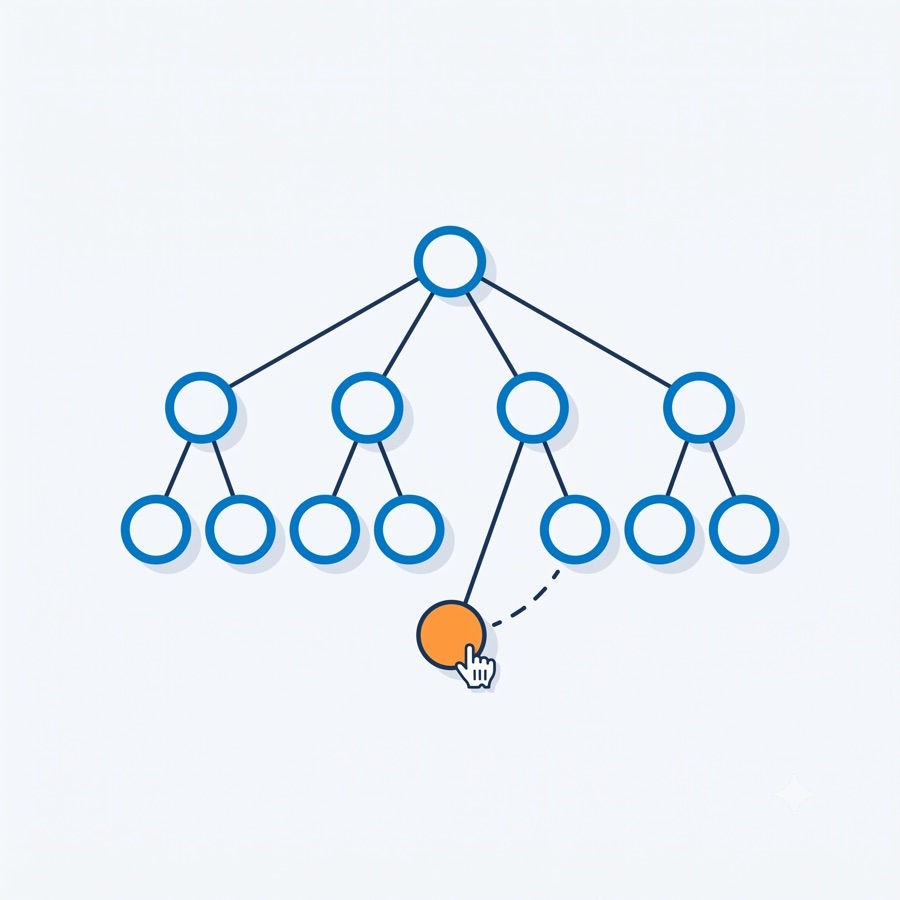
It reads every Contact and builds a tree off the Reports To field. Expand, collapse, or drag a card to reassign a manager.

Departments come from custom metadata, not a picklist. Purchasing, Warehouse Operations, Clinical — whatever actually fits the business.

Retiring a department doesn't mean deleting it. Just flip the Active flag off.

Click a contact, then the pencil icon above it, to start assigning a department.

A dropdown of active departments appears. Pick one, and it's assigned.
The label lands right under the contact's name and title, color-coded.
Colors are configurable too, so a 40-person hierarchy doesn't turn into a wall of gray.

It all writes to the standard Department field, so existing data shows up automatically. No migration.
There's a Kanban view too. Drag contacts between departments, and each column keeps a running count.

Getting it running
Install Power User Toolkit from the AppExchange. Native app, cleared Salesforce Security Review.
Add "Account Org Chart" to the Account page via Lightning App Builder.
Define department labels under the Department custom metadata type.
Assign the "Account Org Chart User" permission set to anyone who needs access.
No Apex. No field mappings to reverse-engineer. Update the metadata once, and the chart stays true after the next reorg.
The actual return on maintaining this
Catching a departed champion three weeks early beats catching it on the renewal call. Across a hundred accounts, that's real revenue.
If your reps are rebuilding org charts from memory before every QBR, this is the gap to close.
For the tree and Kanban views in more depth, see our full walkthrough of Account Org Chart.
Interested in trying it? Install Power User Toolkit from the AppExchange, or reach out through Contact Us Page — we'd like to hear what your account structure actually looks like.


Comments